Chatting with agents
Use the agent chat — sessions, attachments, editing the underlying flow, publishing the chat publicly, and Tasks & Reminders.
Click any agent to open its chat. Each conversation is a session with its own memory; the sidebar lists previous sessions and lets you search them or start a New Session.
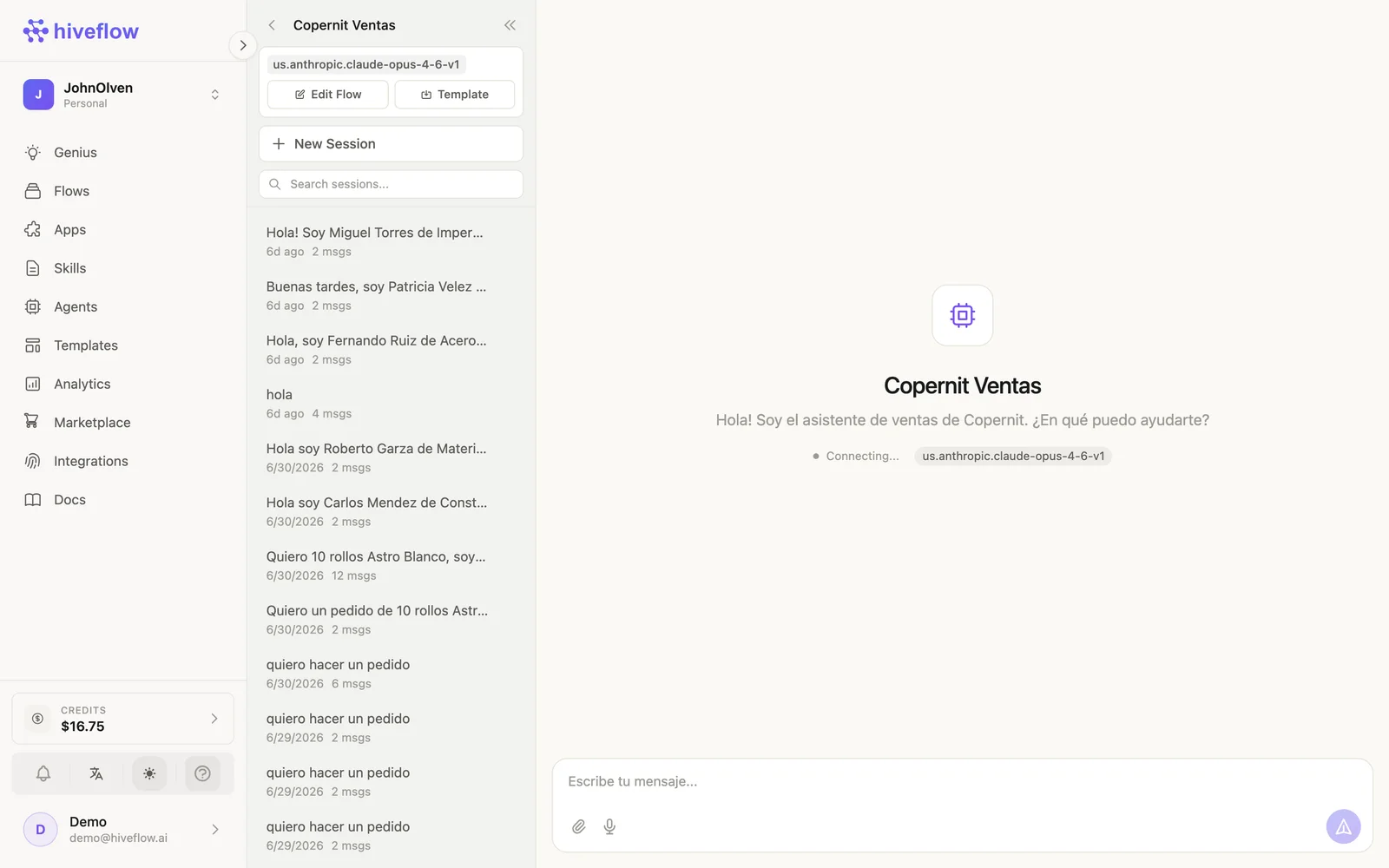
The chat view
- The header shows the model behind the agent and two shortcuts: Edit Flow (opens the agent's canvas) and Template (save it as a reusable template).
- Attach files or use the microphone from the message bar.
- Every message executes the underlying flow and consumes credits like any LLM call.
Watching it work
When the agent uses tools (a CRM, an integration, a database), you can verify exactly what happened: open Edit Flow and check the LLM node's Console → Function Calling Process for the tool-by-tool breakdown of any session message.
Publishing your agent
The agent's chat can leave the dashboard: open its flow and use the Chat Input node's Link (public URL) or Widget (website embed). Keep the flow Active so the public chat responds. For WhatsApp delivery, swap in WhatsApp Input/Output nodes.
Tasks and Reminders
The Agents section also holds Tasks and Reminders — scheduled work assigned to your agents (e.g. a daily digest or a follow-up ping). Create them from the corresponding tabs and they'll run against the agent's flow on schedule.