Using Genius
Genius is HiveFlow's AI assistant — a chat that lists, creates and runs flows, builds Hive Apps and tools, and answers questions about your workspace.
Genius is the conversational front door to HiveFlow, and the first screen you see after signing in. Instead of clicking through the UI, you tell Genius what you want and it does the work — with real actions, not just answers.
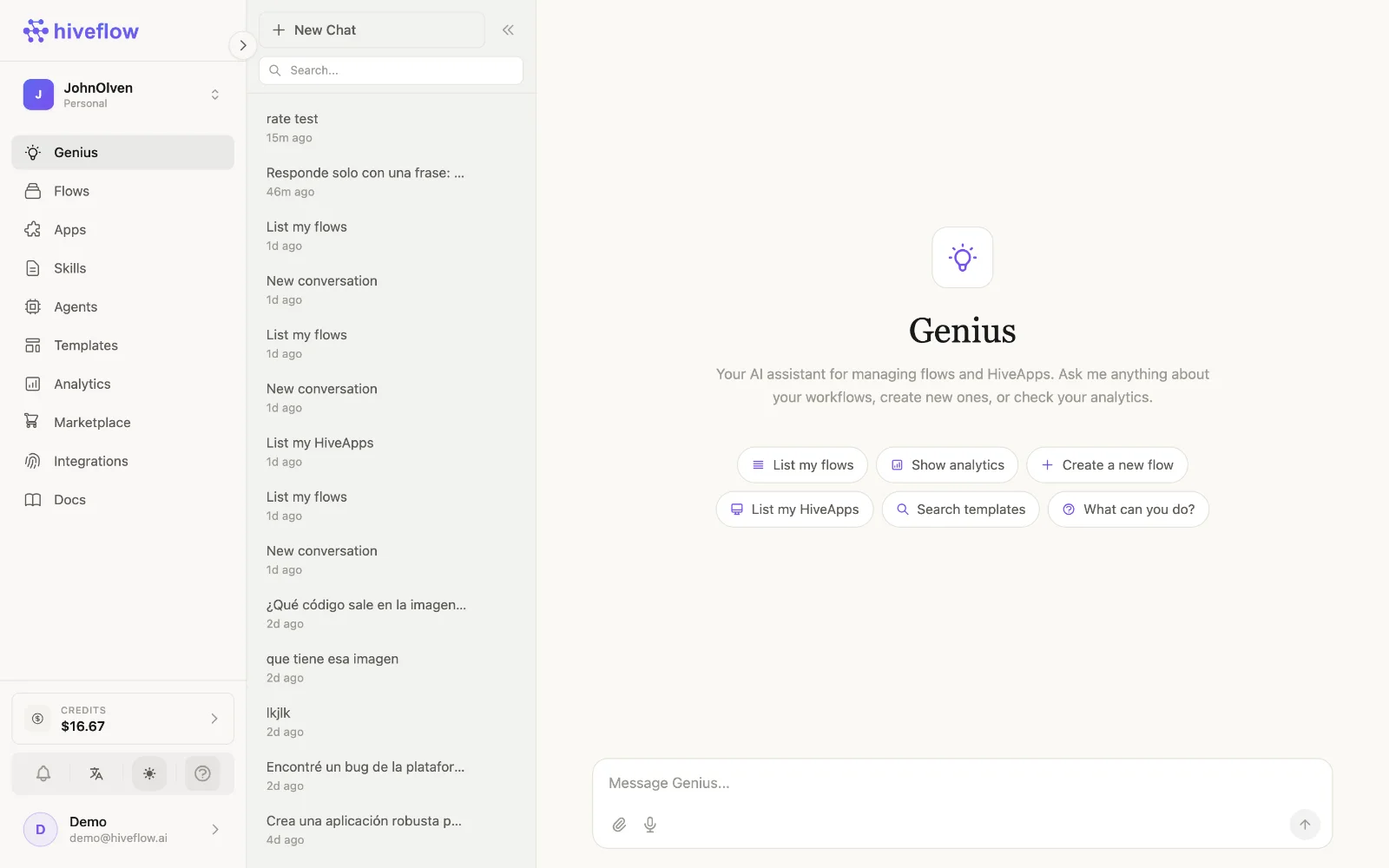
What Genius can do
Genius has function-calling access to your workspace. Among other things it can:
- List and inspect your flows, Hive Apps and templates ("list my flows", "what does my support flow do?").
- Create flows end to end — nodes, connections and configuration — from a plain-language description.
- Run flows and report the result.
- Create Hive Apps and generate their code, or create Tools (CRM, Kanban, Inventory, Analytics, Chat boards).
- Wire tools to agents: connect a CRM or an MCP tool to an existing LLM node as a function-calling tool.
- Search templates, check your analytics, manage WhatsApp sessions and open support tickets.
Suggestion chips under the welcome message ("List my flows", "Create a new flow", "What can you do?") are good starting points.
How to work with it
- Open Genius in the sidebar (or just go to app.hiveflow.ai — it's the home page).
- Describe the outcome, not the steps: "I want a WhatsApp bot that answers questions about my product catalog and saves leads to a CRM."
- Genius creates the pieces and shows them as interactive cards — open a card to jump to the flow or app it built.
- Iterate in the same conversation: "add a step that sends a summary email every night."
Conversations are saved in the left panel, so you can keep separate threads per project. You can also attach files by dragging them into the chat.
In an organization, that history is shared with the teammates who reach the same workspace — they can read your chats but not continue them. See Conversation privacy.
Genius and your Skills
Skills marked for the Genius chat context are injected into every Genius conversation, so it answers with your company's tone, policies and domain knowledge. That's the way to "teach" Genius things it should always know.
Credits
Genius messages consume AI credits like any other LLM call. The model behind it is managed by HiveFlow, so there's nothing to configure.