Connecting integrations
Connect external services — databases, SaaS, messaging, cloud — with credentials or OAuth; each one becomes an MCP server your AI can use.
The Integrations section connects HiveFlow to the outside world: databases (Postgres, MongoDB, Redis, BigQuery…), SaaS (Airtable, Notion, Slack, GitHub, Google Workspace…), cloud services (AWS, Cloudflare…) and many more — over a hundred connectors, all built on MCP.
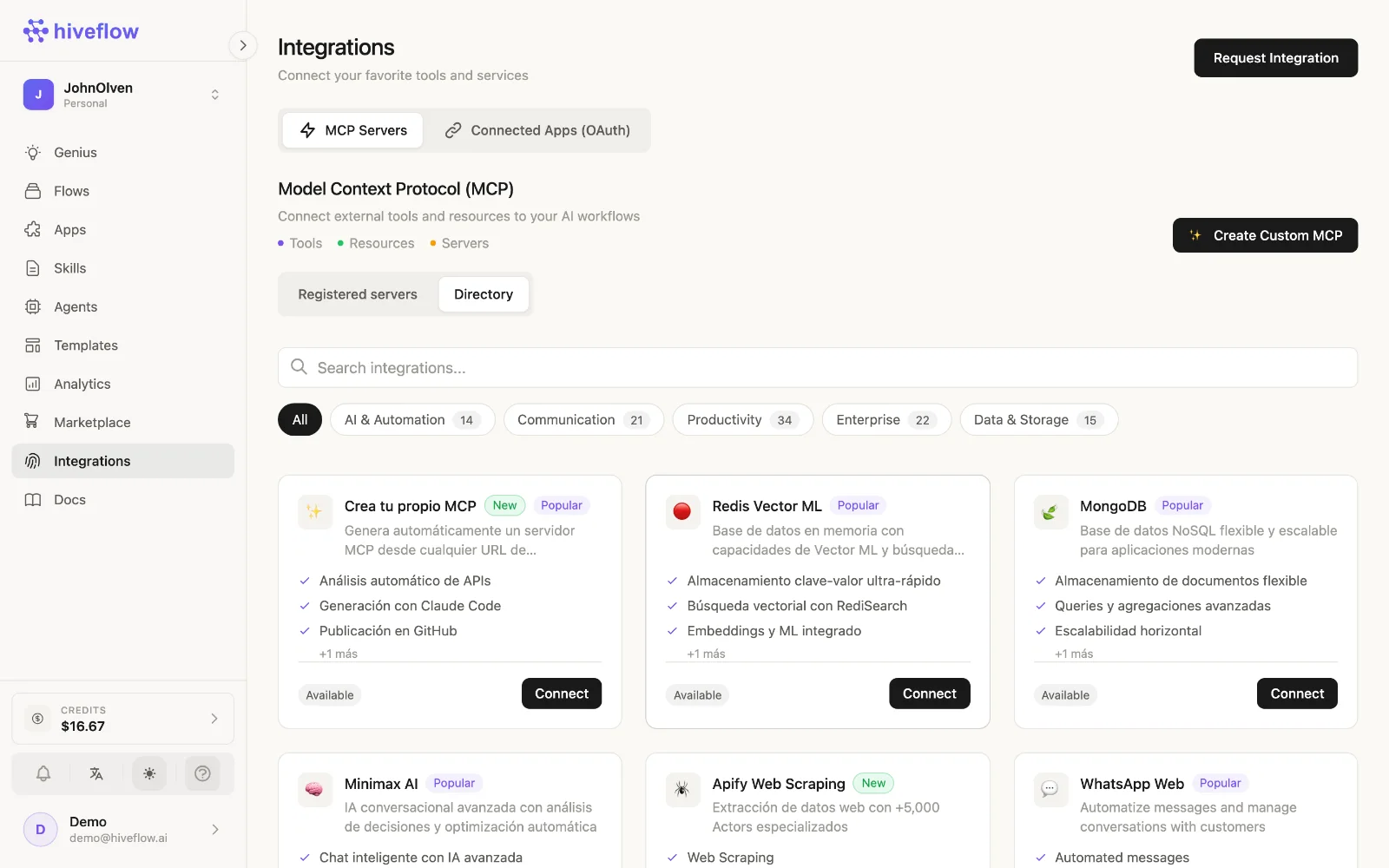
Connect a service
- Open Dashboard → Integrations and find the service (search or browse).
- Enter what it asks for — an API key, a connection string, or OAuth (sign in with the provider and grant access).
- Save. HiveFlow registers a personal MCP server for that service with your credentials, scoped to your account/organization.
That's it — no code. The connection is now available everywhere:
- As tools for your AI: wire it into any LLM Agent via MCP nodes — see adding tools.
- As flow steps: run a specific operation with the MCP Tool node.
- In Genius: ask it to use the integration directly ("query my Airtable leads table").
Generic MCP setup
Using a service we don't list? Generic MCP lets you register any MCP server package (npm) with its environment variables — same experience, any tool in the MCP ecosystem.
Credentials and permissions
Credentials are stored per user/organization and used only by your own MCP servers. In organizations, managing integrations requires the edit resources permission, so admins control who can connect services.
Troubleshooting
If a tool call fails in a flow, open the LLM or MCP node's Console: you'll see the exact tool call and the server's response. Re-check credentials in Integrations if the server reports auth errors.