Building flows
How the HiveFlow canvas works — creating flows, adding and connecting nodes, configuring them, and using the editor's tools.
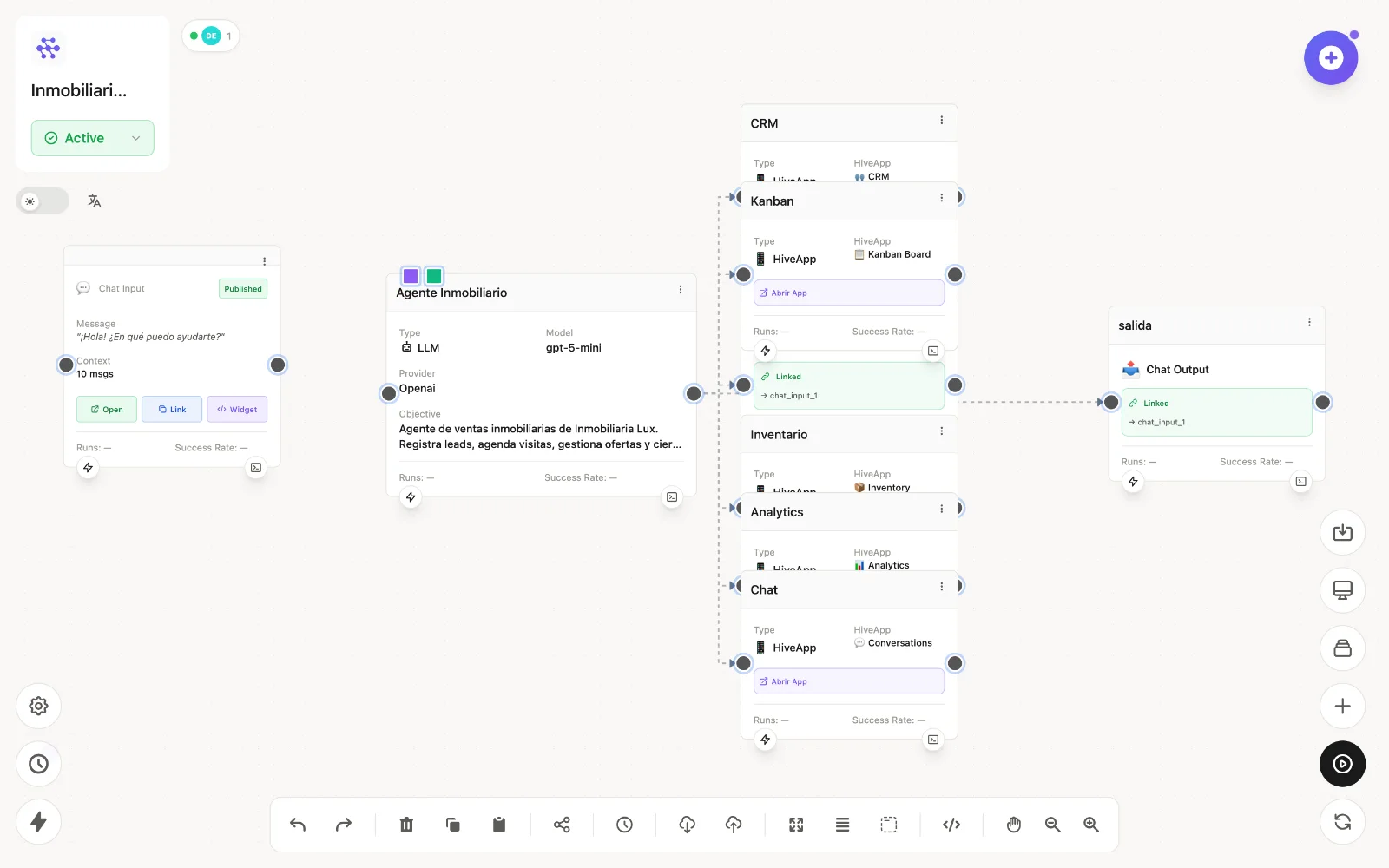
A flow is a canvas of connected nodes: data enters through input nodes, moves along the edges, and each node transforms it until it reaches an output. This guide covers the editor itself; the Node Catalog reference explains what every node does.
Creating a flow
From Flows → + New Flow you get an empty canvas. Alternatives: clone a Template, import a flow file (Import in the toolbar), or describe what you want to Genius or the AI Flow Generator (magic-wand button inside the editor) and let the AI lay down the nodes.
Adding and connecting nodes
- Add Node (✚, top right) opens the Node Catalog — 44 node types in 8 categories, with search.
- Drag from a node's right handle to another node's left handle to create an edge.
- Double-click a node to open its configuration modal (each type has its own form). Every node also has a Console button showing its latest inputs, outputs and logs.
- Use variables like
{{message}}or{{node_id.field}}inside node configs to reference upstream outputs.
Editor toolbar
The bottom toolbar gives you: undo/redo, delete/copy/paste, Share Flow (invite collaborators or generate a guest-editor link), Versions (snapshots you can restore), Export/Import (JSON), Fit View, Auto Layout, Sections (group nodes visually) and Developer Mode. The top bar holds Save flow, Add Node, Process Flow, Reset States and the flow's Active/Paused status.
Organizing big flows
Use Note nodes for annotations and Section containers to group related nodes (moving a section moves everything inside). Sub-flow nodes let you split a large automation into reusable pieces.
Flow status
A flow can be Active (its public interfaces, triggers and schedules respond), Paused, Stopped, or Archived. Manage status from the flow list or the editor header.
Next: running and debugging flows.