Tour the interface
What each section of the HiveFlow dashboard does — Genius, Flows, Apps, Skills, Agents, Templates, Analytics, Marketplace and Integrations.
After signing in you land on Genius, HiveFlow's AI assistant. The sidebar on the left is the map of the whole platform.
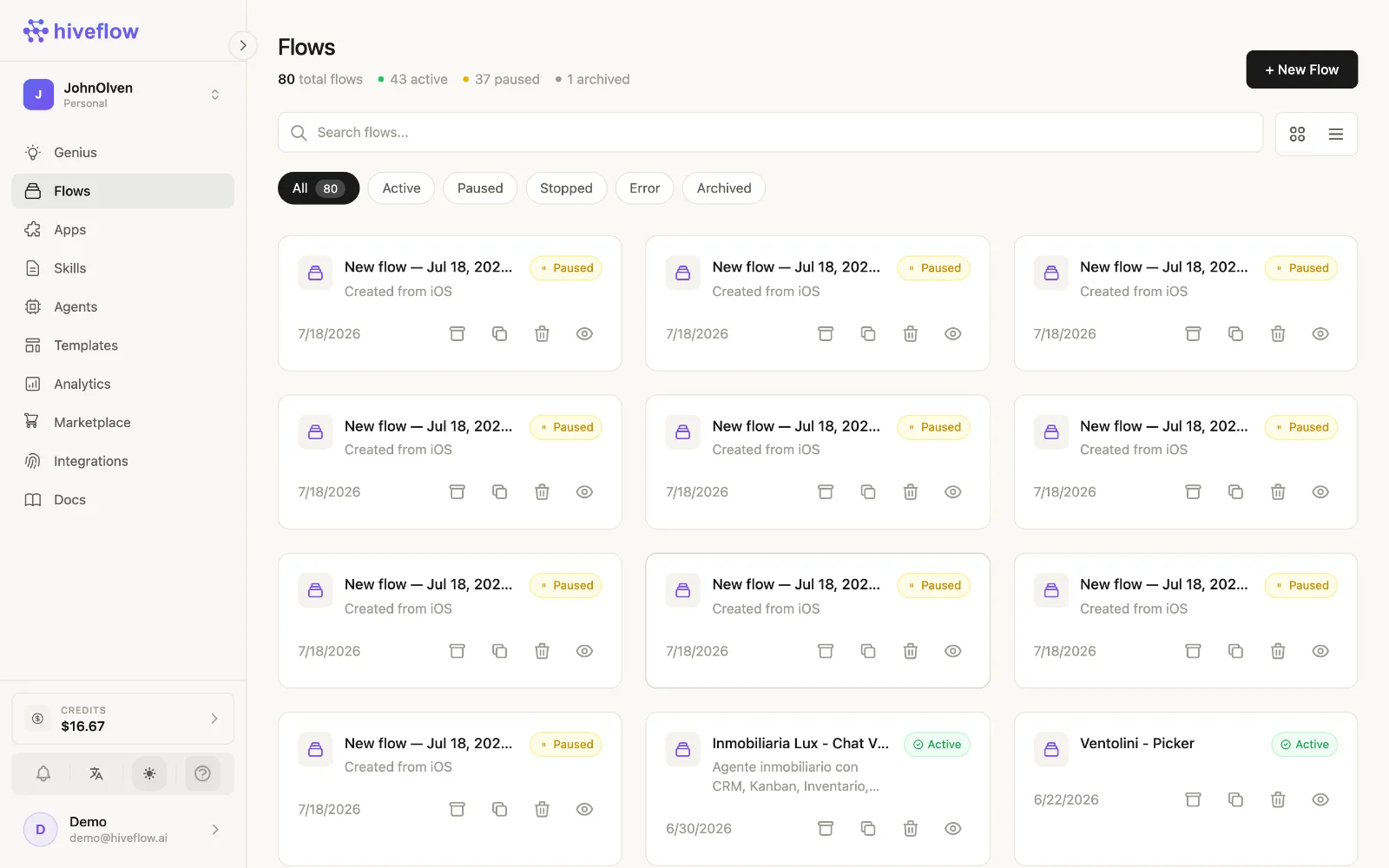
The sidebar, section by section
| Section | What you do there |
|---|---|
| Genius | Chat with the AI assistant that manages, creates and runs flows and apps for you. Guide → |
| Flows | List, search, create and manage your flows — each opens the visual canvas editor. Guide → |
| Apps | Your Hive Apps (AI-generated web apps) and Tools (CRM, Kanban, Inventory, Analytics, Chat). Guide → |
| Skills | Markdown knowledge blocks injected into your AI agents as context. Guide → |
| Agents | Conversational AI agents powered by your flows, plus their Tasks and Reminders. Guide → |
| Templates | Ready-made flows you can clone as a starting point. |
| Analytics | Executions, success rates, credit usage and per-flow metrics. |
| Marketplace | Community templates and components to install into your workspace. |
| Integrations | Connect external services (via MCP) so flows and agents can use them as tools. Guide → |
| Docs | This help center, embedded in the app. |
Organization switcher and credits
At the top of the sidebar, the organization switcher moves you between your personal space and any organizations you belong to (with their workspaces). At the bottom you'll find your credit balance, notifications, language and theme toggles, and your profile.
The flow editor
Opening any flow takes you to the full-screen canvas editor — the heart of HiveFlow. It has its own toolbar (save, add node, process flow, versions, sharing, export/import). The building flows guide covers it in detail.