Connect a WhatsApp number to HiveFlow and turn any flow into a bot: QR session, official API option, tools, per-number context and human takeover.
WhatsApp is a first-class channel in HiveFlow: any flow can receive messages from a connected number and answer through it — with the same LLM agents, tools and observability as every other flow.
Connect your number
Go to Dashboard → WhatsApp Config:
- Start a new session — HiveFlow's WhatsApp service generates a QR code.
- Scan it from the phone that owns the number (WhatsApp → Linked devices).
- The session shows as connected; it stays alive server-side, no need to keep the phone open.
Official API alternative: if you have WhatsApp Business API access, use Dashboard → WhatsApp API Integrations to connect with API credentials instead of a QR session — better for high volume and multi-agent teams.
Build the bot
The minimal WhatsApp bot is three nodes:
WhatsApp Input → LLM Agent → WhatsApp Output- Add a WhatsApp Input node and select your connected session/number.
- Wire it to an LLM Agent with a clear objective.
- Close with a WhatsApp Output node so the reply goes back over WhatsApp.
- Save and set the flow to Active — it now answers around the clock.
Give it tools
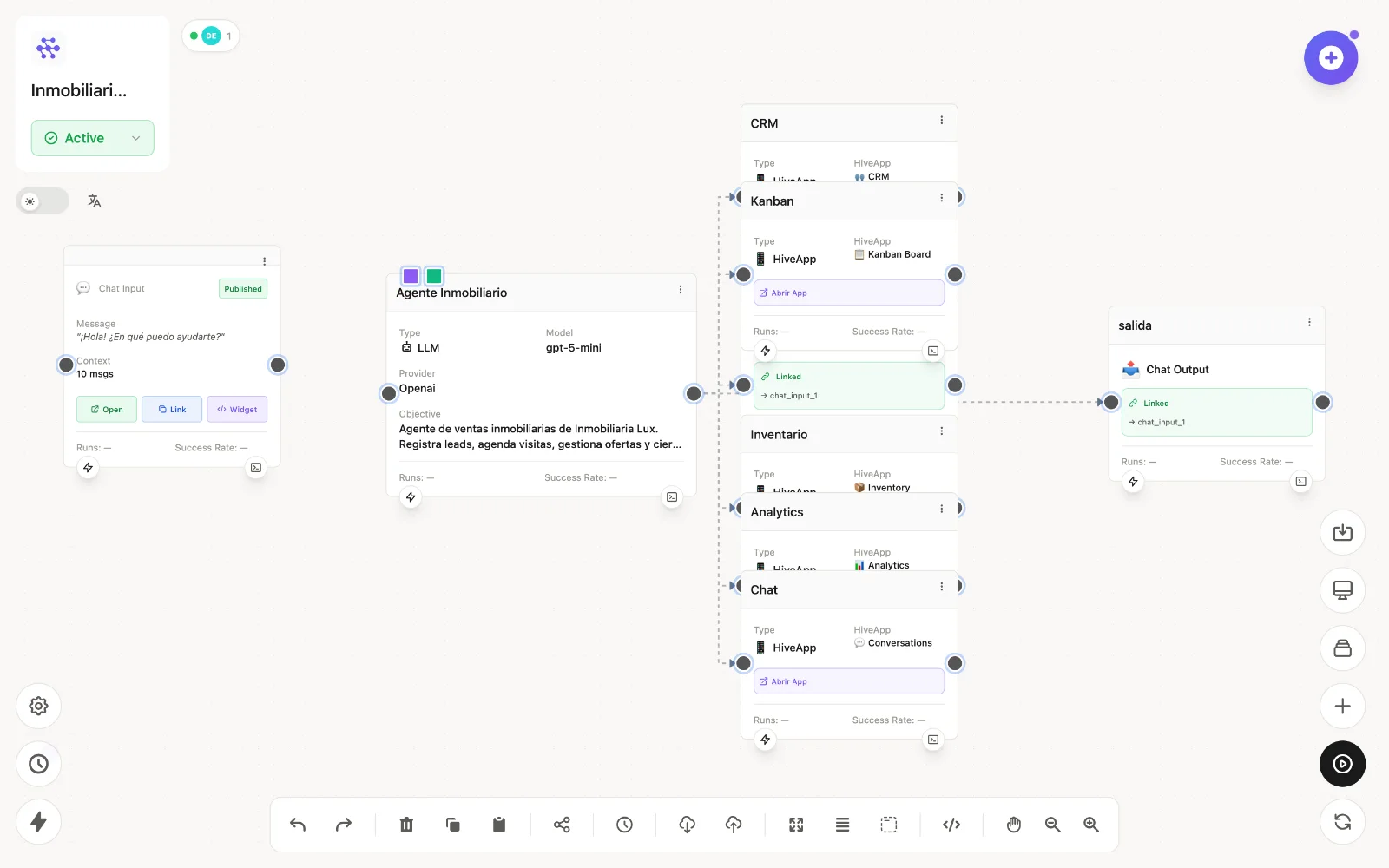
Wire Tools or MCP integrations into the LLM node and enable function calling: the WhatsApp bot can then check inventory, register leads in the CRM or move Kanban cards mid-conversation.
Sessions and context
Each WhatsApp number that writes in gets its own conversation context — the LLM node receives the recent message window per contact, so conversations don't leak between customers.
Human takeover
Log conversations to a Chat Tool (Tools) and a person can supervise every thread from its UI — and take over: the takeover mode pauses the AI for that conversation and lets the human answer directly.
Troubleshooting
| Problem | Fix |
|---|---|
| Session shows disconnected | Re-scan the QR from WhatsApp Config (sessions can drop if the phone unlinks devices). |
| Bot doesn't reply | Check the flow is Active and the WhatsApp Input node points to the connected session. |
| Replies but with errors | Open the LLM node's Console — the Function Calling Process tab shows what failed. |